Monday, 30 April 2007

#9 Finding Feeds

Listen to this podcast [3:08]-->powered by ODEO


Now that you have a newsreader (your Bloglines account or Google Reader), you can begin adding other newsfeeds that interest you. There are several ways you can locate newsfeeds:

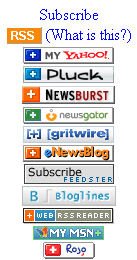
  • When visiting your favorite websites -- look for news feed icons that indicate the website provides it. Often a feed icon will be displayed somewhere in the navigation bar of the site. (Here's an image that contains a sampling of several feed icons).

  • Use Blogline's Search tool - Bloglines recently expanded search tool lets you search for news feeds in addition to posts, citations and the web. Use the Search for Feeds option to locate RSS feeds you might be interested in.

  • Other Search tools that can help you find feeds:

    • Feedster - One of the largest collections of RSS feeds, Feedster lets you search for feeds in three categories: news, blogs & podcasts

    • Topix.net - This search tool allows you to locate recent newsfeed items based upon keyword or phrase searching. The tool focuses specifically on news and media outlet RSS feeds for information, not weblogs.

    • Syndic8.com - Syndic8 is an open directory of RSS feeds that contains thousands of RSS feeds that users have submitted.

    • Technorati - Technorati is a popular blog finding tool that lets you search for blogs. Since RSS feeds are inherent to all blogging tools, Technorati Blog Search can help you find RSS feeds for topic specific blogs you may be interested in.
      Additonal Resource: Technorati Tutorial on finding and adding your blog


Discovery Excercise:

  1. Explore some of the search tools noted above that can help you locate some news feeds.

  2. Create a blog post about your experience. Don't know what to blog about? Here some questions to think about ...
    Which method of finding feeds did you find easiest to use? Which Search tool was the easiest for you? Which was more confusing? What kind of useful feeds did you find in your travels? Or what kind of unusual ones did you find? What other tools or ways did you find to locate newsfeeds?


EXTRA STUFF -- Feed icon information:

In Febuary of this year, the adoption of a standard feed icon among websites and browsers finally began to assist in stopping the madness and confusion caused by so many variations. So far this icon has been adopted by many websites and browers, including Opera and FireFox, where it displays in the address bar:


The next release of Internet Explorer is suppose to have this as well. For more information about this emerging new standard, see Feedicons.com


Original post # Sunday, August 27, 2006 . Posted by HeleneB

#8 Make life "really simple" with RSS & a newsreader

Listen to this podcast [5:15]--> powered by ODEO
FYI & ICYW: This is the longest podcast in the program.

You’ve heard of RSS? You’ve seen those small funny tags on websites? You’ve heard co-workers and acquaintances swear by it, but still have no idea what RSS is? Well don’t worry, according to a recent survey you’re still in the majority, but this is changing rapidly. In the information world, RSS is not only revolutionalizing the way news, media and content creators share information, but it also is swiftly changing the way everyday users are consuming information.

RSS stands for “Really Simple Syndication” and is a file format for delivering regularly updated information over the web.

Just think about the websites and news information sources you visit every day. It takes time to visit those sites and scour the ad-filled and image-heavy pages for just the text you want to read, doesn’t it? Now imagine if you could visit all those information sources and web pages in just one place and all at the same time … without being bombarded with advertising… without having to search for new information on the page you’d already seen or read before… and without having to consume a lot of time visiting each site individually. Would that be valuable to you? Well, it’s available now through a newsreader and RSS.

This week’s discovery exercises focus on learning about RSS news feeds and setting up a Bloglines account (a free online newsreader) for yourself to bring your feeds together.

Discovery Resources:


Discovery Exercise:

  1. Follow the discovery resources above to learn more about RSS and newsreaders.
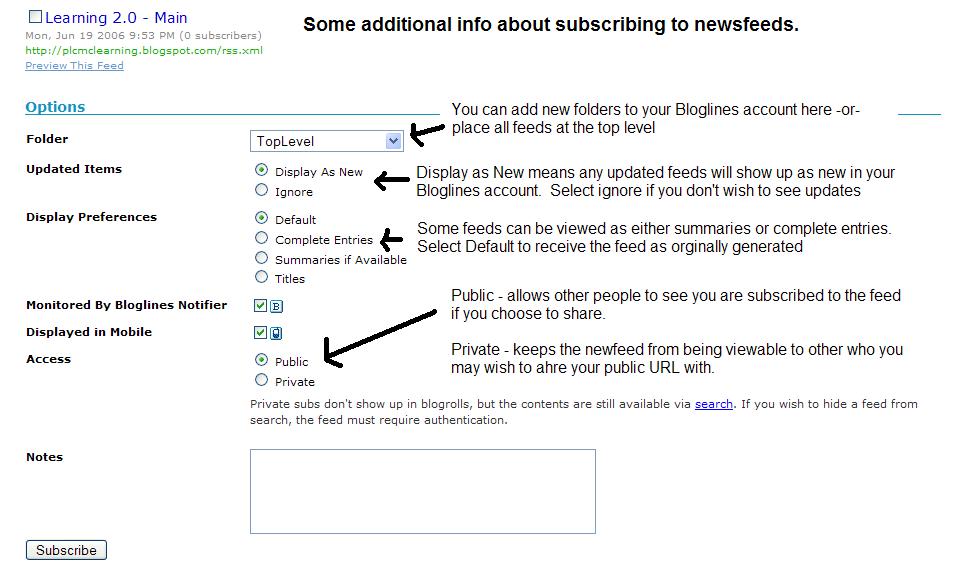
  2. Create a free online Bloglines account for yourself and subscribe to at least 10 newsfeeds to your reader. See Using Bloglines Tutorial steps 1-3 for instructions.

    Newsfeeds:


  3. Create a post in your blog about this exercise. Optional: If you're up to the challenge, you can provide the URL address to your public bloglines account (find where to find this below)


Don’t know what to blog about? Think about these questions:
What do you like about RSS and newsreaders?
How do you think you might be able to use this technology in your work or personal life?
How can libraries use RSS or take advantage of this new technology?
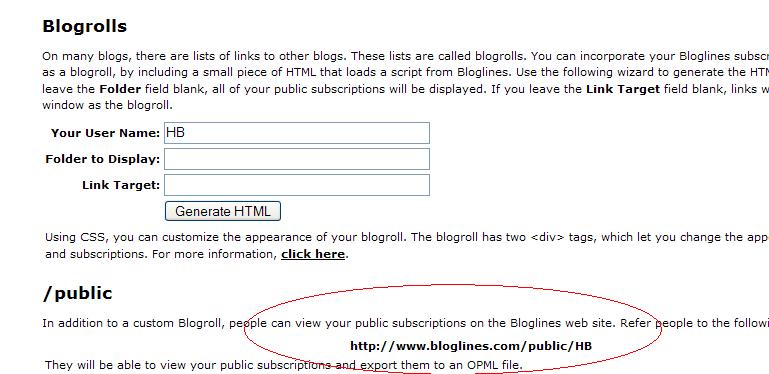
How to find your public Bloglines URL:
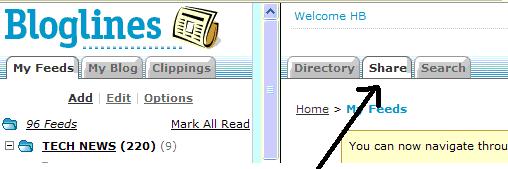
  1. Click on the Share tab within your Bloglines account:


  2. Scroll down the right screen pane and locate the public URL (see screenshot)

  3. Be sure to add this as part of your post to demonstrate your completion of this activity.

In conclusion ...Here is link to my public Blogline's account: http://www.bloglines.com/public/hb

Why have a public account? To share blog rolls with others, of course. That's how the L2 participants list is updated; it's powered through a public blogroll. :)

PS: Once you tackle this discovery exercise, you've tackled the most difficult one of the whole 23. :)

Original post # Sunday, August 27, 2006 . Posted by HeleneB

#7 Blog about Technology

Hello Learning 2.0 participants.

Turn up your speakers or put on your headphones and click here for special message regarding this discovery activity.

If your headphones are sleeping, here's the simple message condensed:

"For this thing, simply blog about anything technology related. Yes, it can be anything that relates to technology! You just need to share a few thoughts."

PS: Also be sure add at least one comment to another participant's blog. That's what online communities are all about - connecting and communication. :)

Original post # Sunday, August 20, 2006 . Posted by HeleneB

#6 More Flickr Fun


Like many web 2.0 sites, Flickr has encouraged other people to build their own online applications using images found on the site. Through the use of APIs (application programming interfaces), many people have created third party tools and mashups* that use Flickr images. Here are just a sampling of a few …

  • Mappr - allows you to take Flickr images and paste them on a map
  • Flickr Color Pickr - lets you find public photos in Flickr that match a specific color.
  • Montagr – create a photo mosaic from photos found on Flickr.
Discover more mashups, web apps, and Flickr tools.

Discovery Exercise:


Your discovery exercise for this “thing” is to:
  1. Explore some of the fun Flickr mashups and 3rd party tools that are out there.
  2. Create a blog post about one that intrigues you.

Personally one of my very favorite tools is FD ToysTrading Card Maker. And there’s a ton of librarians out there that have created their own Librarian Trading Card.

So have some fun discovering and exploring some neat little apps. And if you're up to the challenge while you’re at it, why not create a trading card of your own. :)

* Mashup Note: Wikipedia offers some great articles that explain mashups. Basically they are hybrid web applications that take features from one application (like Flickr) and mash it up with another (like a map). In this example, you get Mappr (http://mappr.com).

PS: Learning 2.0 image created by Spell with Flickr.

Original post# Sunday, August 20, 2006 . Posted by HeleneB

#5 Discover Flickr

Listen to this podcast [2:38]-->powered by ODEO


Chalkboard bookshelves
Originally uploaded by hblowers.
Photo sharing websites have been around since the 90s, but it took a small startup site called Flickr to catapult the idea of “sharing” into a full blown online community. Within the past year, Flickr has become the fastest growing photo sharing site on the web and is known as one of the first websites to use keyword “tags” to create associations and connections between photos and users of the site.

For this discovery exercise, you are asked to take a good look at Flickr and discover what this site has to offer. Find out how tags work, what groups are, and all the neat things that people and other libraries (list also here) are using Flickr for.

Discovery Resources:


Discovery Exercise:

In this discovery exercise, you have two options…

  1. Take a good look around Flickr and discover an interesting image that you want to blog about. Be sure to include either a link to the image or, if you create a Flickr account, you can use Flickr's blogging tool to add the image in your post. Another option you have for including images in your post is to use Blogger's photo upload tool.

    -- OR --

  2. If you're up to an easy challenge ... create a Free account in Flickr and use your location's digital camera to capture a few pictures of something in your branch. Upload these to your Flickr account and tag at least one of the images “WCML2” and mark it public. Then create a post in your blog about your photo and experience. Be sure to include the image in your post. Once you have a Flickr account, you have two options for doing this: through Flickr's blogging tool or using Blogger's photo upload feature.

So go ahead, explore the site and have some Flickr photo fun and if you're interested in looking at some photo hosting sites, then why not check out Jamie's recommendations & this Wired story. (Thanks Jamie for the link).

PS: A quick word about photo posting etiquette - When posting identifiable photos of other people (especially minors) is it advisable to get the person's permission before posting their photo in a publicly accessible place like Flickr. Never upload pictures that weren't taken by you (unless you have the photographer's consent) and always give credit when you include photos taken by someone else in your blog.

PPS: And in case you're wondering ... the photo is of Helene Blowers daughter at ImaginOn. I used the handy dandy "blog this" tool inside Flickr to add it to this post.

Original Post # Sunday, August 20, 2006 . Posted by HeleneB

Sunday, 29 April 2007

#4 Register your blog and join the party ...

If you’ve made it this far, you already have three items or “things” completed of the twenty three that are required to earn a book voucher.

But how do you qualify? Good question! By registering your blog and recording your progress on each of the 23 things.

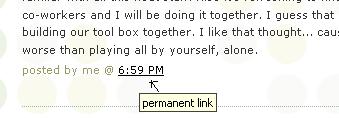
Starting with Thing #5, you also need to include the URL for the permanent link to each of your blog posts that capture your thoughts, comments or findings about your discovery process. And depending upon the Blogger template that you selected, the permanent link for each individual posts can be found either through the post’s title or through a link in the post's footer area the contains the date.

Example:

Here is where you would find the perma link for this sample blog post:


Click on this link to see actual post.

If you click on the permanent link for an individual post, you will be taken to its page. This is the link that you want to use when recording your progress. And to make recording easy, I would suggest that you make a habit of recording your progress weekly.

So, here’s to Thing #4 – why not hop on over to 43 Things and use this 23 things list created by Helene found at 43 Things to record your progress. You'll need to create a 43 Things account first record your first four items on this discovery quest. It’s really that easy and just think, now there’s only 19 more things to go. :)

PS: If you’re not Wesley staff member, you can follow along as well. Just use the list found at 43 Things to record your progress. You'll need to create a 43 Things account first.

Important
As this program is a modification of the original 23 things I have had to modify the progress tracking. If your having trouble logging your progress just email each time you complete a step with the link to the blog in the email. I know it's old tech but I'll track it manually to keep everybody on target.

#3 Grab yourself a blog in 3 steps

Listen to this podcast [2:17]-->

powered by ODEO


Now that you’ve done some exploring around this website and understand how this program will work, it’s time to setup your very own personal blog to begin recording your thoughts, discoveries and exercises in. For this program, I recommend that you use Blogger*, a popular free online blog hosting service that is extremely easy to use.

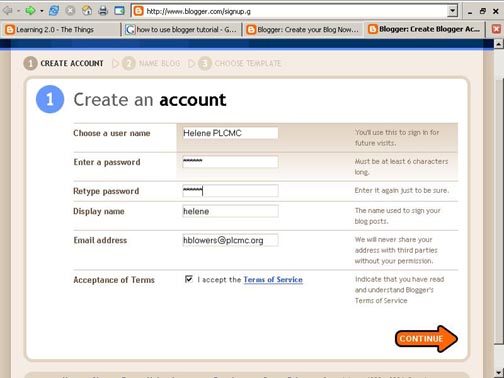
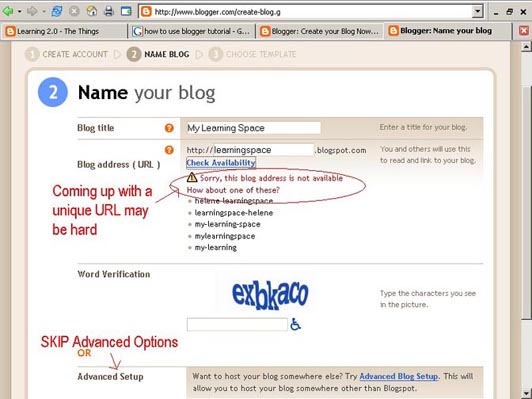
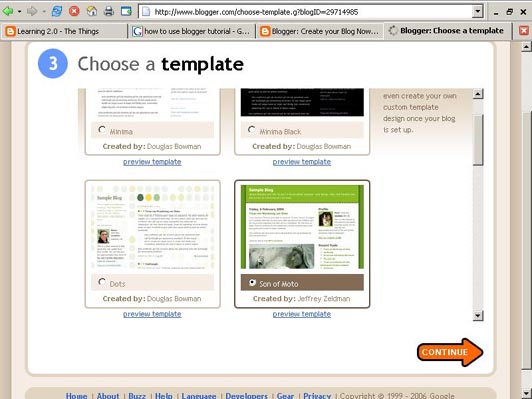
Creating a blog using Blogger takes just three steps:
  1. Create an account (view screenshot)
  2. Name your blog (view screenshot)
  3. Select your template. (view screenshot)
Once you’ve created your blog here are two important things to know:
  • To add posts: The maintenance interface that you will use to add posts, edit or change the step-up your blog is accessed online at http://www.blogger.com Be sure to write down your login and password.
  • To view your blog: Your blog address is http://(xxxx).blogspot.com, (xxxx)=the unique identifier you entered in Step 2. Be sure to also write down your blog address.
If you run into problems or would like more information about blogs and using Blogger here are some discovery resources you can use:
OK -- Now, it’s your turn...

Discovery Exercise:
  1. Setup a blog for yourself through Blogger.

  2. Add a test post or two.
    Note: Use one of your test posts to create an entry about the habits among the 7 and 1/2 lifelong learning habits that is easiest and hardest for you & why.

  3. Have fun!!!!
IMPORTANT NOTE: How you choose to identify yourself on your blog is your choice. You can blog under a screen name, anonymously, or as yourself. However, in order to qualify for the staff incentives, you will need to register your progress with Bart (see the next activity).

* Use of Blogger is only a recommendation. If there is another blog hosting site that you are more comfortable with, please feel free to use it.

Thursday, 19 April 2007

#2 Lifelong Learning & Learning 2.0

Listen to this podcast [1:31]-->
powered by ODEO


Among libraries, lifelong learning is one of those core values we shelve our books by. So it makes sense that before we embark on this new online learning and discovery journey that we should take a few minutes to review a few habits that can assist in creating lifelong learners.

These habits, which we’ve called the Seven and 1/2 Habits of Highly Successful Lifelong Learners, will provide you with a refresher on what it means to be a lifelong learner.

Discovery Exercise:

  1. Make sure you have headphones or speakers attached to your computer.
  2. Open up the 7 & 1/2 Habits online tutorial and view the online tutorial.
  3. As you watch and listen, write down which habit among the 7 & 1/2 that is easiest for you and which is hardest. You will use your personal blog (which you will set up next) to post your thoughts about lifelong learning.
Have fun! If you haven't jumped on board yet, it's never too late to become a lifelong learner.

PS: Sorry for the discrepancy between the podcast and online tutorial. The tutorial is actually 14 minutes. In the final preparation of the tutorial, there was just too much information to cut it down. :)

Next Up: Creating your blog so you can begin tracking your journey.

Original Post # Monday, August 07, 2006 . Posted by HeleneB

#1 Discovery has never been so much fun ...

Listen to this podcast [1:53]-->
powered by ODEO

Welcome to Wesley Colege's Learning 2.0 program & blog. Chances are if you've found your way here you're either:
  1. a member of Wesley's staff who's participating in the Learning 2.0 Challenge.
  2. interested in learning about and playing around (yes, playing is allowed in libraries) with some new web 2.0 tools that will help you expand your information literacy toolbox.
Either way… I'm glad you're here!!

Learning 2.0 is online learning program that encourages staff to learn more about emerging technologies on the web that are changing the way people, society and libraries access information and communicate with each other.

Over the course of the next eight and a half weeks, this website will highlight “23 Things” and discovery exercises to help staff become familiar with blogging, RSS news feeds, tagging, wikis, podcasting, online applications, and video and image hosting sites.

To familiarize yourself with this project, be sure to read the About page. The FAQs should answer most of your questions about this program. If not, then please add your question to the FAQ page as a comment.

So fasten your seat belts, grab your mouse and get ready for a discovery adventure… and remember, it's OK to play in the library and have fun!

Be sure to tune in Monday, April 30th for the next "thing" or discovery item ...

Wednesday, 18 April 2007

23 Things @ Wesley

Listed below are 23 Things (or small exercises) that you can do on the web to explore and expand your knowledge of the Internet and Web 2.0

Staff are encouraged to complete the 23 Learning 2.0 Things* (Note: Details about each task will be added every week with related posts for each item)

The program is based on the Public Library of Charlotte & Mecklenburg County's (PLCM) successful Learning 2.0 program developed by Helene Blowers.

Week 1: Introduction
1. Read this blog & find out about the program.
2. Discover a few pointers from lifelong learners and learn how to nurture your own learning process.
Week 2: Blogging
3. Set up your own blog & add your first post.
4. Register your blog and begin your Learning 2.0 journey.
Week 3: Photos & Images
5. Explore Flickr and learn about this popular image hosting site.
6. Have some Flickr fun and discover some Flickr mashups & 3rd party sites.
7. Create a blog post about anything technology related that interests you this week.
Week 4: RSS & Newsreaders
8. Learn about RSS feeds and set up your own Bloglines newsreader account.
9. Locate a few useful library related blogs and/or news feeds.
Week 5: Play Week
10. Play around with an online image generator.
11. Take a look at LibraryThing and catalogue some of your favourite books.
12. Roll your own search tool with Rollyo.
Week 6: Tagging, Folksonomies & Technorati
13. Learn about tagging and discover a Del.icio.us (a social bookmaking site)
14. Explore Technorati and learn how tags work with blog posts.
15. Read a few perspectives on Web 2.0, Library 2.0 and the future of libraries and blog your thoughts.
Week 7: Wikis
16. Learn about wikis and discover some innovative ways that libraries are using them.
17. Add an entry to the Learning 2.0 Sandbox wiki.
Week 8: Online Applications & Tools
18. Take a look at some online productivity (word processing, spreadsheet) tools.
19. Explore any site from the Web 2.0 awards list, play with it and write a blog post about your findings.
Week 9: Podcasts, Video & Downloadable audio
20. Discover YouTube and a few sites that allow users to upload and share videos.
21. Discover some useful search tools for locating podcasts.
22. Take a look at the titles available on NetLibrary and learn how to download audio books.
23. Summarize your thoughts about this program on your blog.